Turn a LinkedIn post into infinite leads
Follow this guide at your own pace: build your SDR agent in Houston, install the agent or skills, and turn the comments on any LinkedIn post into an outbound campaign ready for your approval.
An SDR agent that prospects for you
You give it one thing: the link to a LinkedIn post. It hands you back a full campaign waiting for your approval.
The process, start to finish
The agent in action
Think about scale: a post with 1,000 comments becomes a database of 1,000 prospects, with a verified work email for more than half of them and a 3-email sequence already written and loaded into Instantly, waiting for your approval. All from a single link, in minutes instead of days. And the master move: it doesn't have to be your post. Run the same recipe on someone else's post (an industry leader's lead magnet, a competitor, an event) and their audience becomes your list. That's why it's called infinite leads.
| # | Name | Role | Company | Profile | Verified email |
|---|---|---|---|---|---|
| 1 | Ana M. | Head of Growth | Nubetech | in/ana-m | [email protected] |
| 2 | Carlos R. | Founder & CEO | Veloro | in/carlos-r | [email protected] |
| 3 | Diana P. | VP Sales | Aurora Labs | in/diana-p | [email protected] |
| 4 | Javier T. | Product Lead | Kantto | in/javier-t | not found |
| 5 | Mariana B. | Marketing Director | Origen | in/mariana-b | [email protected] |
| 6 | Sergio D. | COO | Brío | in/sergio-d | enriching… |
This is a lot of power. The agent never sends anything on its own: the campaign always stays paused, waiting for your approval. Keep that guardrail and prospect with judgment.
What to have on hand
Four things you need and a couple of links on hand. Everything is free and takes minutes to set up.
A computer
Mac or Windows. Houston doesn't run on phone or tablet.
A LinkedIn account
Plus a post with comments to test on, yours or someone else's.
A Google account
So the agent can save the leads in Google Sheets.
You have your computer on hand, you can open your email, and you have a quiet stretch ahead. Full setup takes 60 to 90 min and your first campaign another 15 to 40 min. You don't have to do it all in one sitting: every step is saved.
From step 0 to 5, in order
Do them top to bottom. Each step builds on the one before it.
Computer, accounts, links, and codes~5 min 1Install Houston and set it up
Download, installation, AI provider~15 min 2Import the SDR agent
"From a friend" → SDR.houstonagent~5 min 3Create your tool accounts
Apify, Apollo, Hunter, and Instantly~15 min 4Connect the integrations in Houston
Apify MCP, Apollo, Google Sheets, and Instantly~15 min 5Run your first campaign
From a LinkedIn post to Instantly on pause15 to 40 min
Install Houston and set it up
If you already have Houston installed and set up, skip to Step 2.
- Go to www.gethouston.ai and click the download button.
- Enter your contact details and download the right version for your system: Mac or Windows.
- Open the installer and follow
Next→Next→Install. Open Houston. - Choose the language (English) and read the welcome screen.
- Connect your AI provider: Anthropic (Claude) or OpenAI (your ChatGPT account). Sign in through the browser and come back to Houston when it says you can close the page.
- Connect your integrations provider (Composio): click
Sign In, sign in with Google or Microsoft, authorize, and come back to Houston.
Windows may show "Windows protected your PC". That's normal: Houston is in beta on Windows. Click More info and then Run anyway.
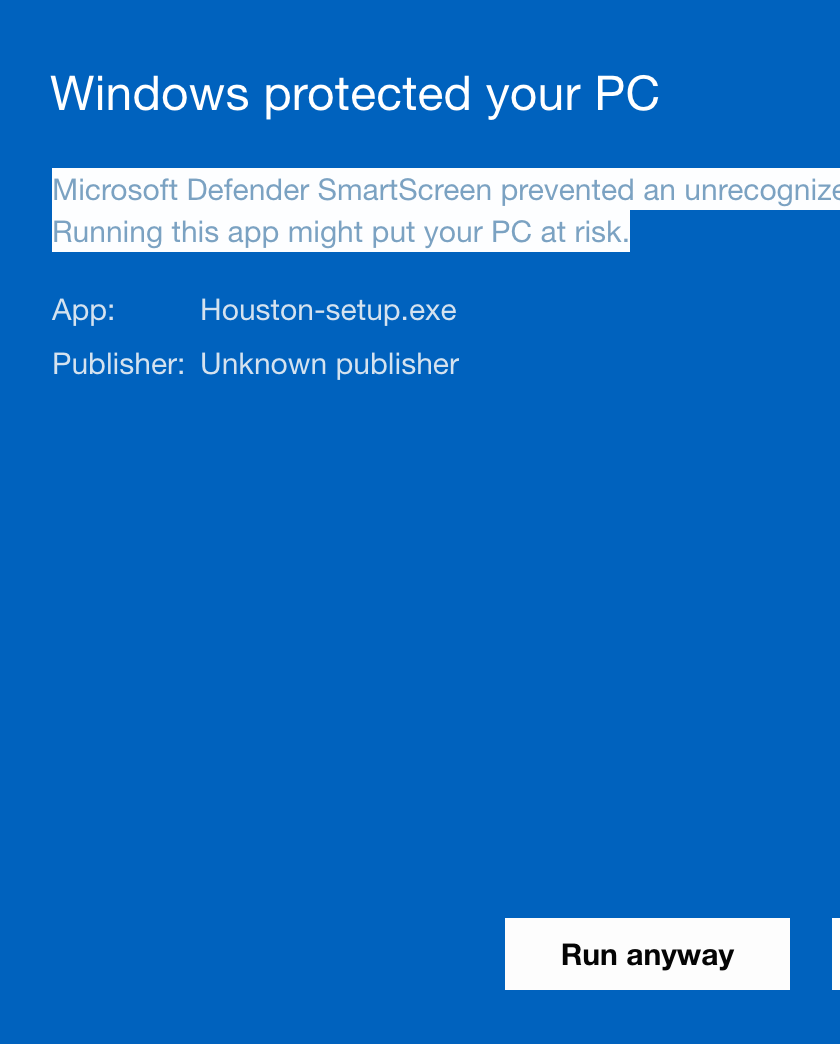
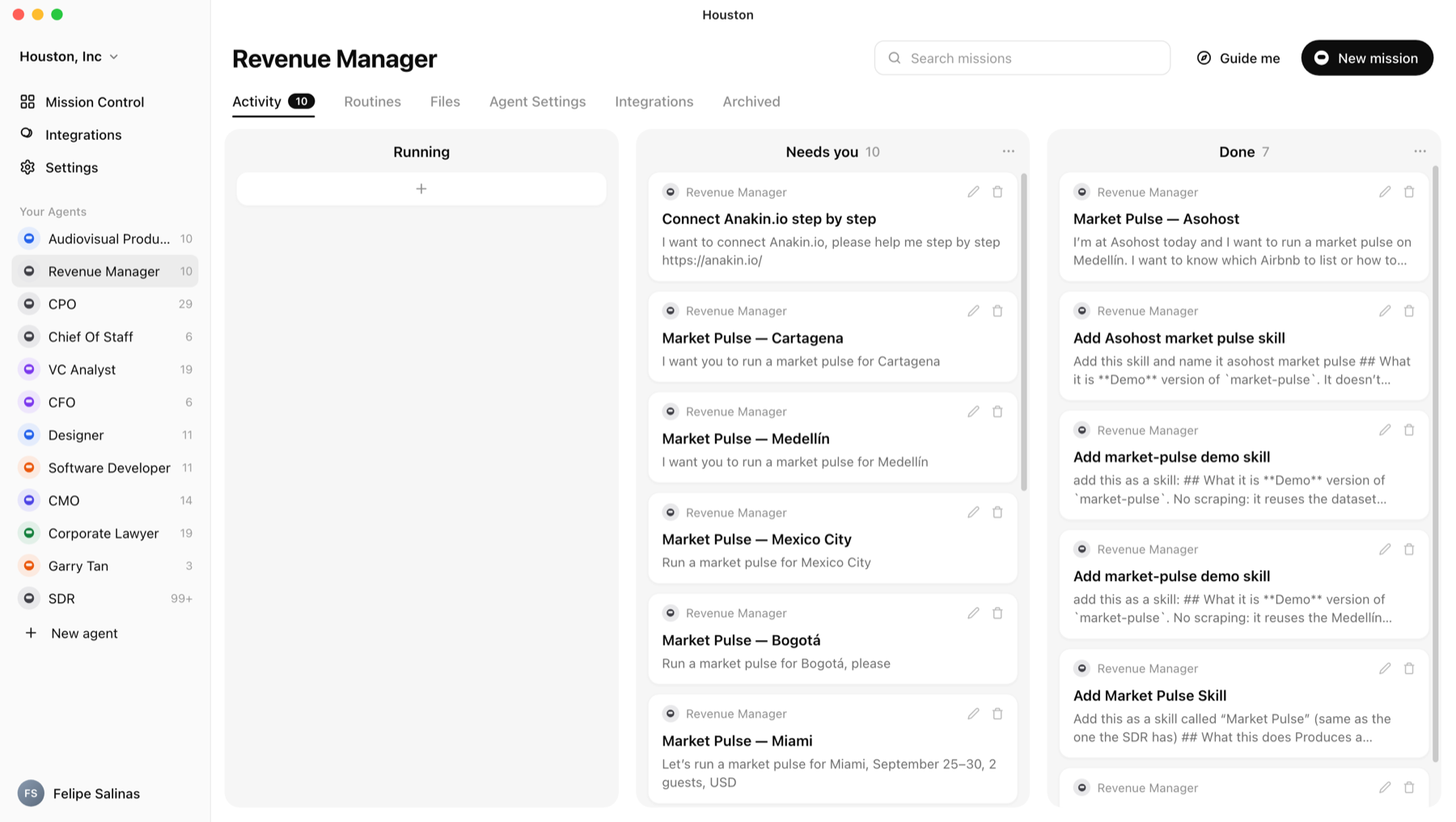
The Houston main screen unlocked, with the agents column on the left, and your AI provider and Composio connected.
Import the SDR agent
The fastest way is to bring in the agent already built. It arrives with its identity, its 8 skills, and its 14 learnings, ready to work. You don't have to configure anything by hand.
- Download the agent file (if you haven't already in Step 0).
Download SDR.houstonagentSave it as is, without unzipping.
- In Houston, in the left bar, click
New agent. - At the very top, choose
From a friend.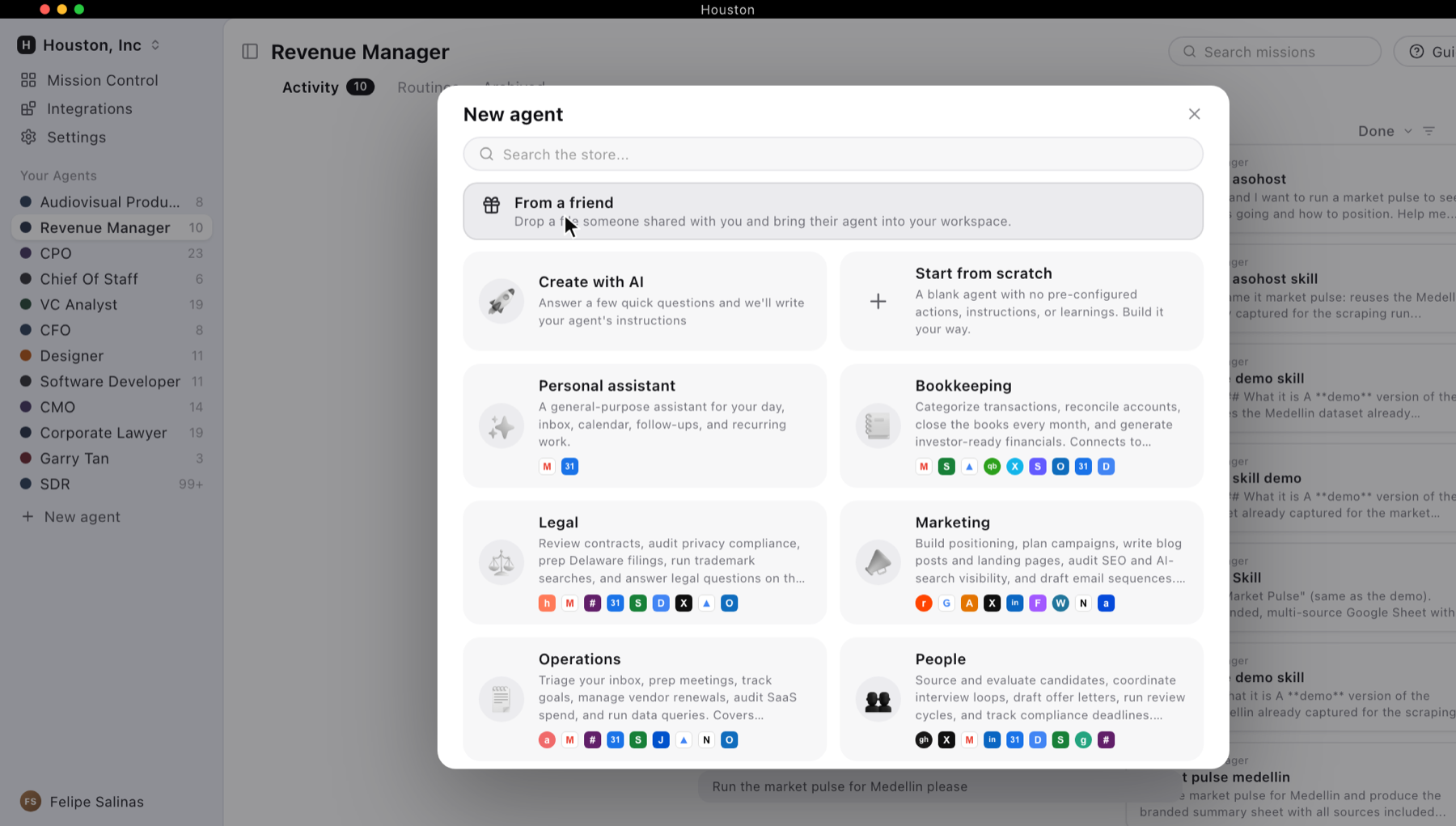
Screenshot 4The "New agent" window. The "From a friend" option is at the top: that's where you upload the agent file. - Click
Choose file, select the SDR.houstonagent you downloaded, thenContinue.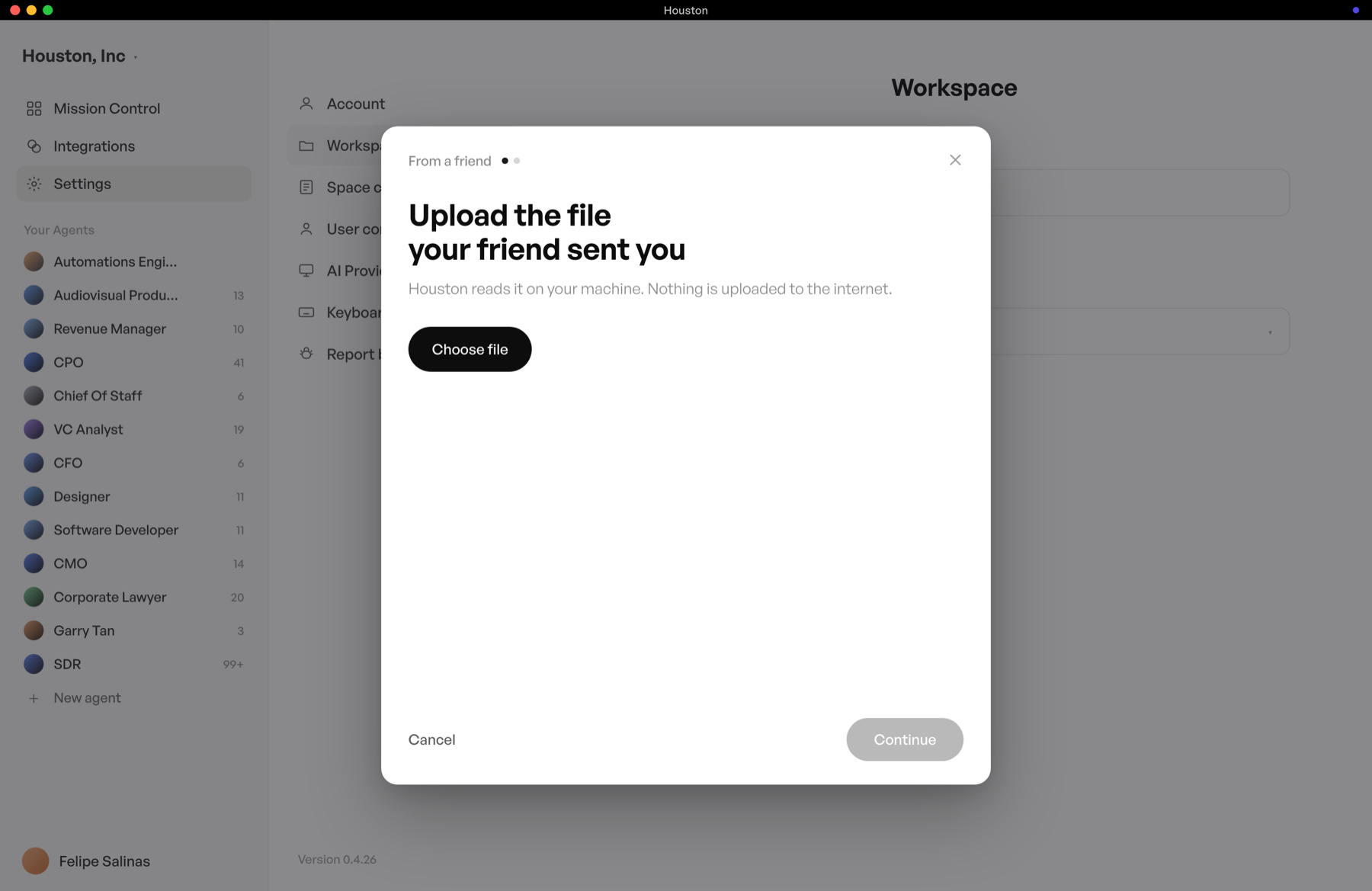
Screenshot 5Upload the file. Houston reads it on your machine; nothing is uploaded to the internet. - Houston shows you what the agent brings (8 skills, 14 learnings) and asks "Do you want Houston to take a look?". Choose
Yes, review it: it runs a quick security review before installing anything from a third party. Wait for it to confirm.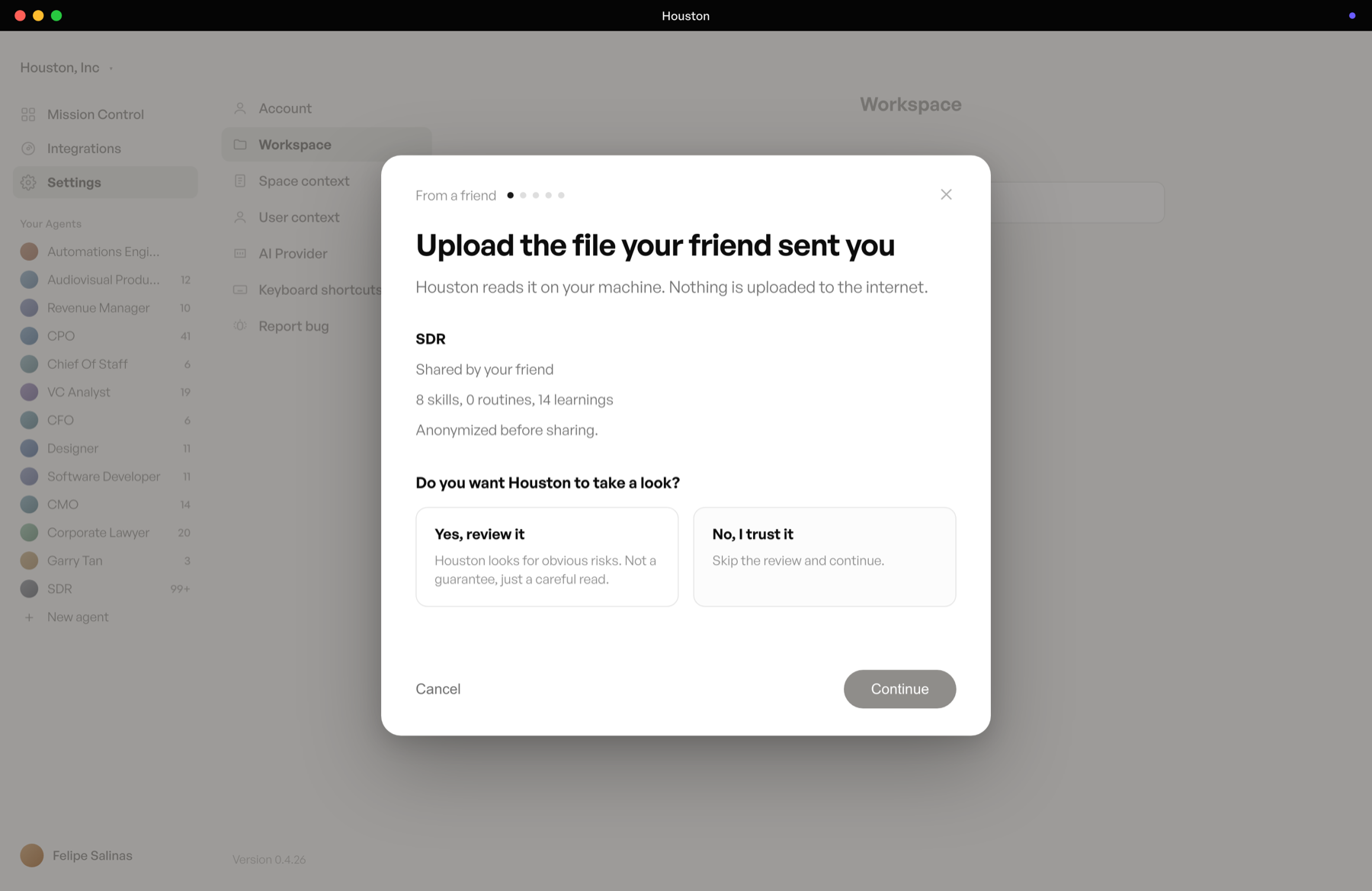
Screenshot 6Houston summarizes what the agent brings and offers to review it. Choose "Yes, review it". - Give it a name (for example, SDR) and a color, and bring the agent into your space.
Upload SDR.houstonagent as is, as a single file. If your computer unzips it into several parts, the import fails. Keep it all together.
You can also build it by hand: create an agent from the Sales template and then install the skills pack from GitHub (Job Description → Skills → Add skill → From GitHub → github.com/felipesalinasr/fsr-stack → install all). It takes a bit longer; the result is the same.
Your new SDR agent in the left column, with its 8 skills and its learnings already loaded.
Create your tool accounts
Four tools give your agent hands. Create an account with each one (all free to start); we connect them in Step 4. Create it before connecting it.
 Free credits
Pulls everyone who commented on the post.
Email signup failing? Sign in with Google.
 Free · ~100/mo
Finds verified work emails.
Corporate Apollo? Create a personal account: API keys require admin rights.
 HunterOptional
Backup for the emails Apollo can't find.
If you don't create it, tell the agent to use Apollo only.
 Free
FreeSends the campaign without burning your domain.
For volume, use alternate domains warmed up with Warm Up.
Four accounts created: Apify, Apollo, Instantly, and (optional) Hunter.
Connect the integrations in Houston
In Houston, open your agent's Integrations tab. There are two ways to connect: one click (you sign in) or with an API key (you copy it from the tool and paste it into Houston).
One clickChoose Apify MCP, not plain "Apify": that one asks for a token and confuses everyone.
 Google SheetsOne click
Select the exact "Google Sheets" in the list.
API keyApollo shows the key only once: copy it the moment you create it.
API key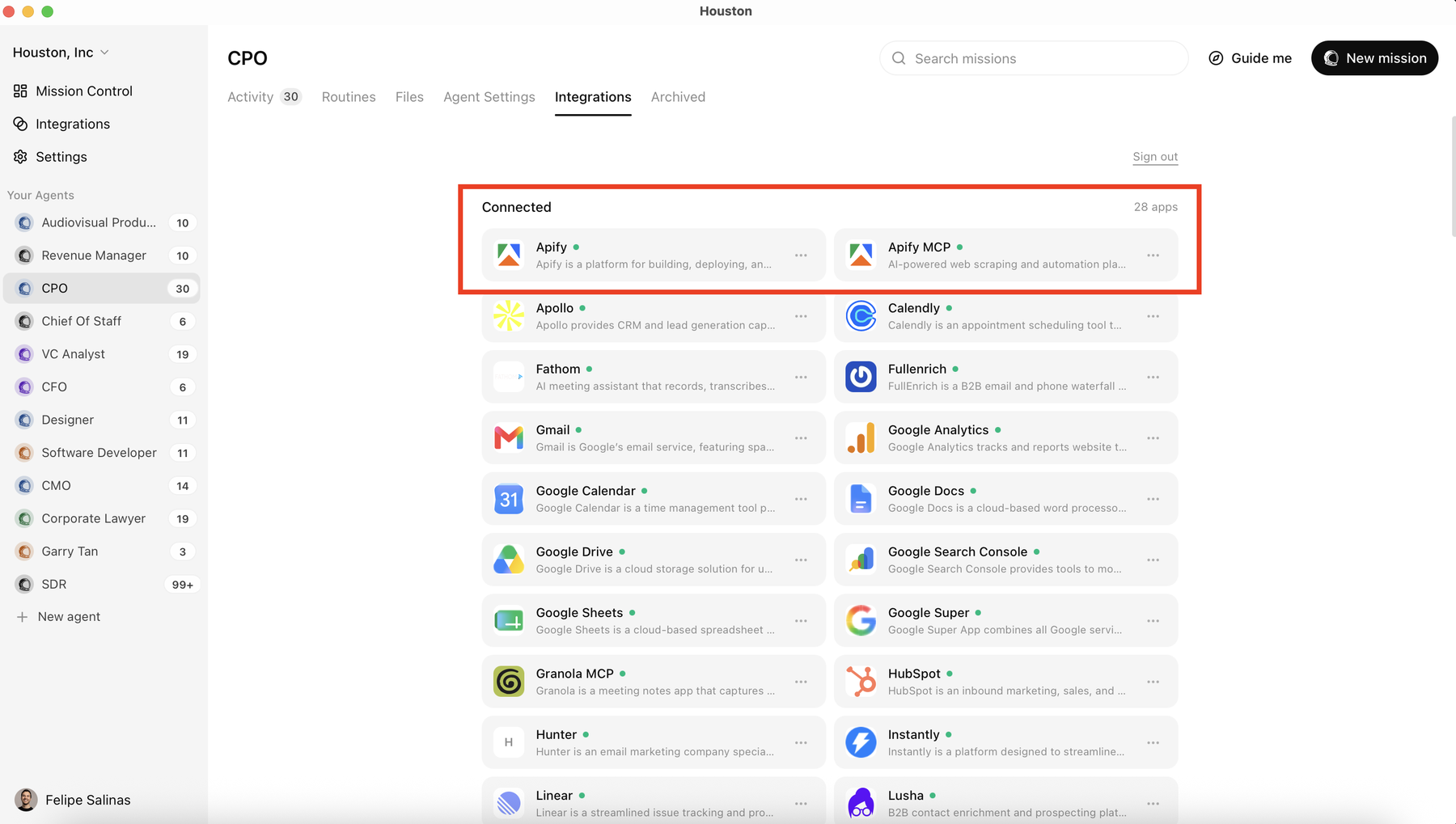
Paste them into Integrations, not the chat (there they get exposed in the history), and don't share your screen while you copy them. Lost looking for a key? Ask the agent for help: "help me step by step to find this tool's API key."
Four integrations in green: Apify MCP, Apollo, Google Sheets, and Instantly. (Hunter connects the same way, or you leave it for later.)
Run your first campaign
- Go to LinkedIn and copy the link of a post with comments: one of yours, or someone else's whose audience is useful to you (an industry lead magnet, for example).
- In your agent, open
Activityand in theIn progresscolumn click the + to create anew mission. - In the mission's skill picker, look for LinkedIn Comment to Outreach G-Sheets. If you don't see it right away, scroll down: it shows up under
Featured. - Paste the link and write:
Copy and paste, with your linkRun this skill on this LinkedIn post: [paste the post link here]
- Let it work in phases. First it scrapes the comments with Apify and creates the Google Sheet; then it asks for your green light to enrich with Apollo; then it writes the 3-email sequence with you; and at the end it loads everything into Instantly. This is on purpose: you review at each phase and don't burn credits if something went wrong.
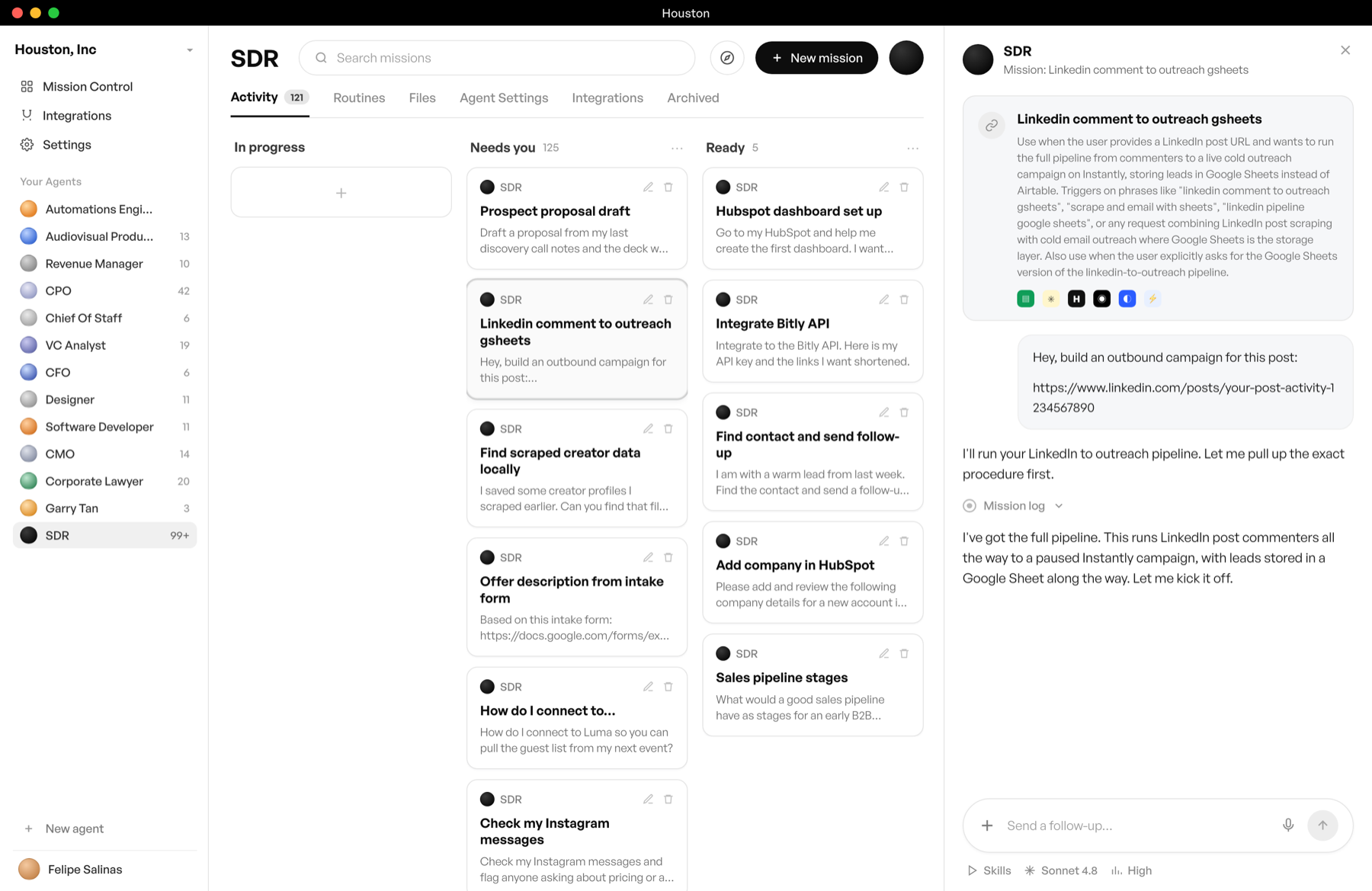
Screenshot 8The agent starts the mission: it reads the skill, takes the post link, and announces it will run the full pipeline until it leaves the campaign paused in Instantly, saving the leads in a Google Sheet. - When it finishes, open the campaign in Instantly: it's paused, with your leads and the 3-email sequence (opener day 0, reminder day 3, close day 6 to 7). Review it, adjust whatever you want, and only then decide whether to send.
Apollo and Hunter find a verified email for 50 to 70% of the leads: it's a database, not magic. In practice, 42 commenters yielded 24 emails (57%). An empty cell is normal, not a failure. And each email found uses one Apollo credit.
Loading the campaign is safe: it stays paused. But don't activate it until you have sending emails set up in Instantly (ideally alternate domains warmed up with Warm Up). If you don't have them yet, tell the agent: "I want to try the skill without Instantly for now."
You have a Google Sheet with every commenter on the post, verified emails for most of the reachable ones, and a 3-email campaign waiting for your approval in Instantly. From a single link.
Make it yours
You edit everything by talking to it in plain language, no code. Treat it like a new team member you're teaching your way of working.
- Qualify against your ICP before spending credits:
Copy and paste, attaching your criteriaEdit the skill: add a column called qualification and always score against these ideal-customer criteria. If a lead is not qualified, do not even fetch the email.
- Teach it to always use the skill:
Copy and paste into the chatStore in your memory that every time I give you a LinkedIn post link, you use the LinkedIn Comment to Outreach G-Sheets skill.
- Avoid duplicates across runs:
Copy and paste into the chatWhenever we prospect, check in Apollo that we are not enriching duplicate data.
- Use a different sequencer or a CRM? Houston connects to any tool with an API or MCP. In practice we connected Smartlead, a tool we had never used before:
Copy and paste, with your toolI want to connect to [your tool], help me please. Here is the link to its documentation: [paste the link]
- Prospect the people who react too: the pack includes LinkedIn Reaction to Outreach, the same play but with a post's likes instead of its comments.
Troubleshooting
The real snags people hit and how to fix them.
?I can't connect my AI provider (Claude doesn't respond or the login fails)
Settings → AI Provider → connect OpenAI with your ChatGPT account. The result is the same.?Windows says "Windows protected your PC" and won't let me install
More info and then Run anyway. It's because Houston is in beta on Windows; it's safe.?Apify asks me for a "token"
?I can't find the Apollo API key
Settings (bottom left, the last item) → left menu Integrations → API Keys → create a new key. The rule works for almost every tool: Settings → Integrations → API Keys.?I copied the Apollo API key wrong and can't see it anymore
?Apollo says only an admin can create the API key
?I switched Apollo accounts but Houston still uses the old one
Delete the old connection, and reconnect with the new key from Houston.?The Composio page keeps loading when I connect the integrations provider
get started for free → sign in with your Gmail. If there's a selector at the top left, switch it to for you. Then go back to Houston and try again.?The Settings or Integrations menu doesn't show up in Instantly
?Mid-run it says Google Sheets isn't connected
Integrations → find Google Sheets (select the exact one) → connect it with your Google account. Go back to the mission and tell it: "I've connected Google Sheets now, continue."?The agent asks me for Hunter.io and I don't want another account
?It says "LinkedIn is blocking Apify" or something similar
Add skill → From GitHub → the repo → install all) and start a new mission.?I can't find the skill in the new mission's picker
Featured section. And confirm under Job Description → Skills that the pack is installed.?It found very few emails
?I'm about to update Houston and I'm afraid of losing everything
Your success checklist
If you can check all of this, you're done.
Checked everything? Your SDR agent is already working for you.
Tell us how your first campaign went and what you want to automate next.
Share my result with the communityGot stuck on a step?
Message us in the Houston LATAM WhatsApp community and we'll sort it out with you. Nobody gets left without their SDR agent running.